![footer-logo.png]](https://help.intentwise.com/hs-fs/hubfs/footer-logo.png?width=210&height=40&name=footer-logo.png)
Walmart Marketplace offers two primary types of API access based on whether you are a first-party (1P) supplier/vendor or a third-party (3P) seller. The key difference between the two lies in your relationship with Walmart: 1P suppliers/vendors (including Drop Ship Vendors (DSV) and warehouse vendors) sell directly to Walmart, while 3P sellers sell directly to customers through Walmart's platform. This guide outlines the steps and processes for accessing the APIs for 1P Vendors.
1P Supplier/Vendor API Access
1P suppliers/vendors, such as DSV and warehouse vendors, supply products directly to Walmart, which then retails them to customers. Walmart’s Supplier API enables these vendors to manage items, orders, inventory, and other key operations.
Note: Currently, Walmart provides API access only for DSV (Drop Ship Vendor) 1P suppliers. API access is not available for Warehouse Vendors at this time.
Steps to Provide 1P Supplier API Access:
-
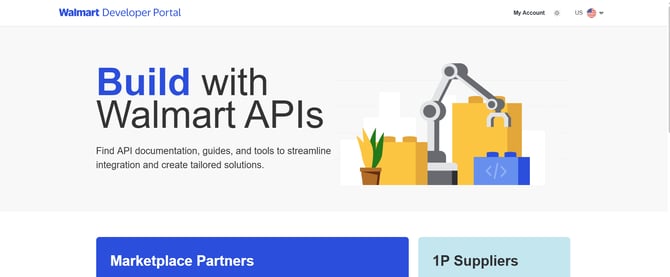
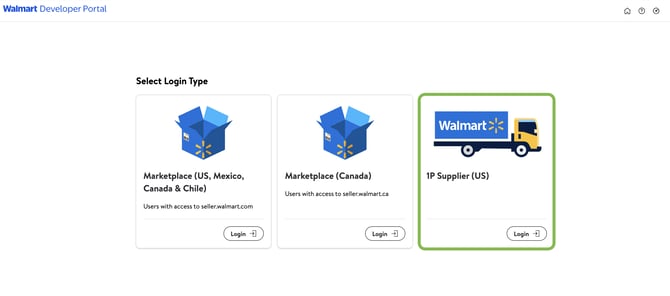
Select My Account and log in to your Walmart developer account by selecting 1P Supplier (US) using https://developer.walmart.com
-
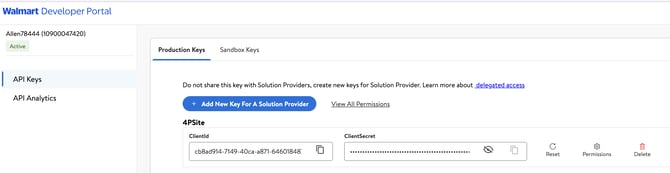
Navigate to the API Keys section, where you will see two tabs: Production Keys and Sandbox Keys.
Under the Production Keys tab, you can view and manage your Client ID and Client Secret.
-
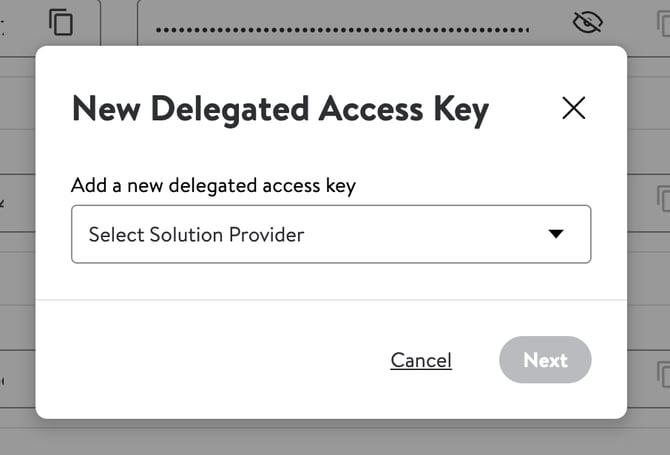
Click the "Add New Key For A Solution Provider" to add Intentwise. You'll see a pop-up to add a New Delegated Access Key.
-
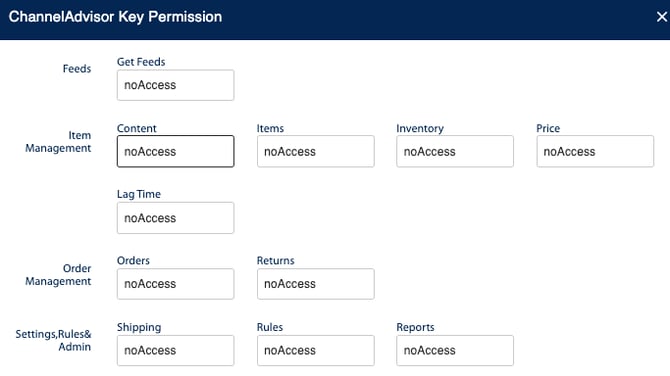
Under ChannelAdvisor Key Permissions, give FullAccess to Intentwise for all fields. For any additional permissions, you can discuss them with your Account Manager or write to us at help@intentwise.com
-
Reach out to the Intentwise support team at help@intentwise.com and provide the following details:
-
Client ID
-
Client Secret
-
Ship-Node(Distributor ID)
If you are a DSV supplier, we need the Ship nodes to download the sales data. Ship-Node: The Distribution Facility “Distributor ID” uniquely identifies each facility and is autogenerated during DSV account creation.
Once we get the required details, we will initiate the onboarding process from our end, which takes a working day to complete. -