![footer-logo.png]](https://help.intentwise.com/hs-fs/hubfs/footer-logo.png?width=210&height=40&name=footer-logo.png)
The Order Creation flow lets you set up Amazon DSP orders without leaving Intentwise. In a single flow, you can:
-
Create one or more orders (bulk creation)
-
Add multiple line items under each order
-
Attach creatives from the Creative Library to line items - per line item or across all orders at once
-
You can create up to 5 orders; each order can have up to 5 line items, and each line item can have multiple creatives attached.
Note: Order Creation is available only on the new UI. If you're on the Classic UI, use "Switch to New UI" to access this feature.
Note: Tactic-based order creation is not supported at this time.
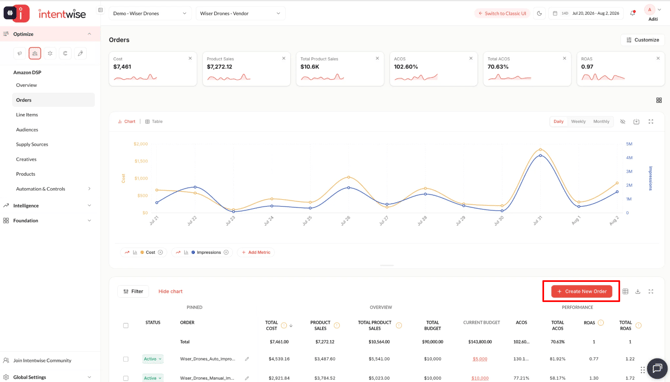
Where to Start
Go to Amazon DSP → Orders in the left navigation, then select + Create New Order on the Orders table.
This opens the Create Order(s) wizard.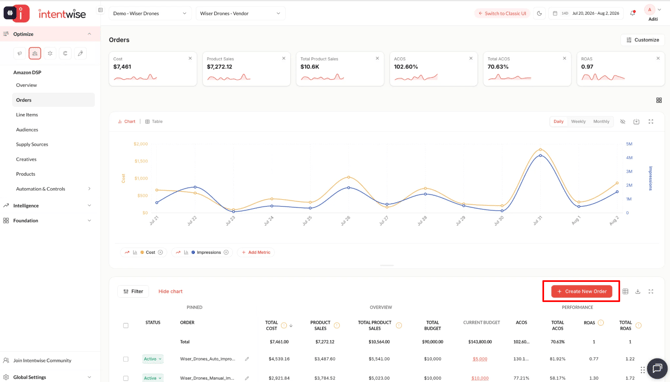
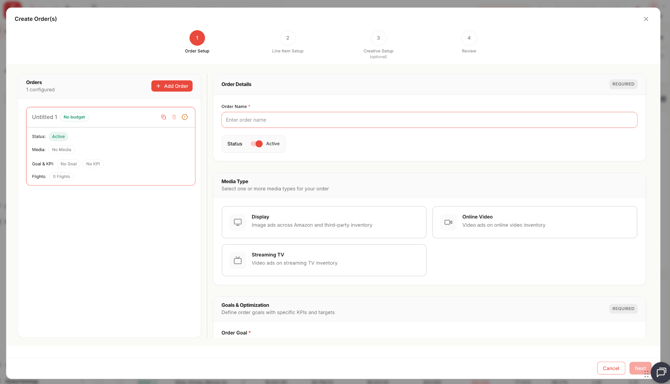
The wizard has four steps:
- Order Setup
- Line Item Setup
- Creative Setup (optional)
- Review
Step 1 - Order Setup
Define the order in the Order Details panel on the right. Each order you configure appears in the Orders list on the left.
Fill in the required fields to move to the next step
To add more orders, select + Add Order (up to 5 total). Click Next to continue.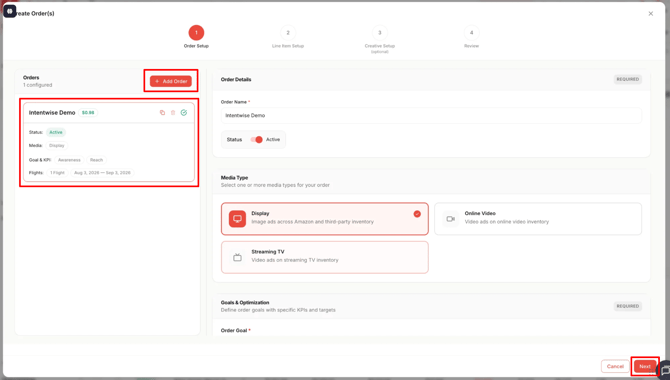
Step 2 - Line Item Setup
Add line items under each order in the Line Item Details panel. Each line item appears in the list on the left with its bid, Status, Media, Targeting & Inventory, Delivery, & Bidding
Fill in the required fields to move to the next step
Select + Add Line Item to add more (up to 5 per order). Use Back to return to Order Setup, or Next to continue.
Users can also copy the line item to multiple Orders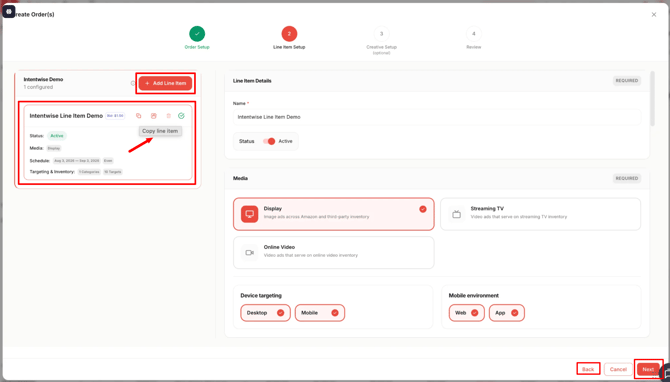
Step 3 - Creative Setup (optional)
Attach creatives from the Creative Library to your line items. This step is optional - you can skip it and add creatives later.
There are two ways to add creatives:
Per line item - Select a line item, choose + Add Creative, then Select from library.
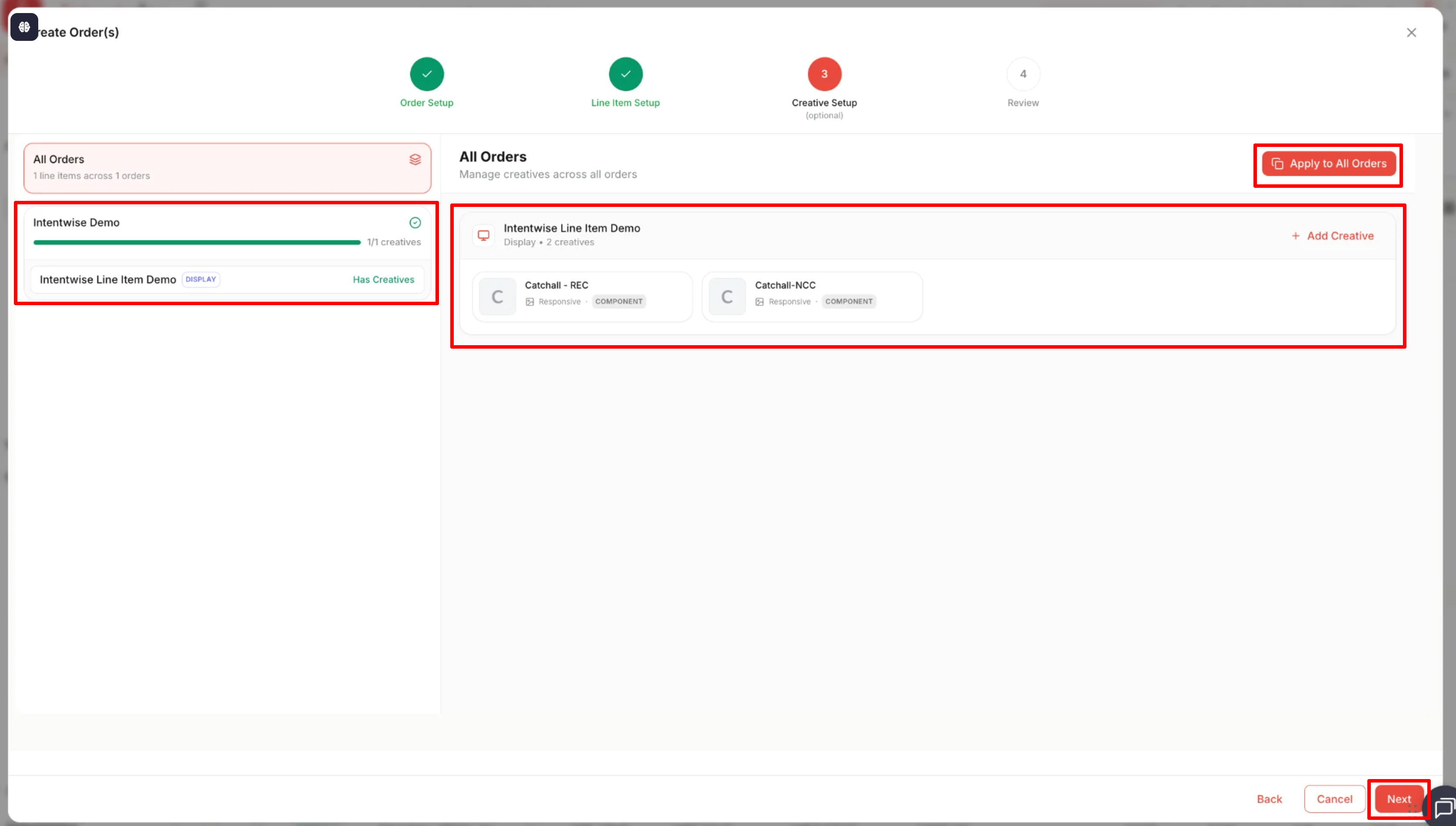
Across all orders - select All Orders, then Apply to All Orders to assign creatives to every line item across all orders at once.
The left panel tracks creative progress per order (e.g., 0/1 creatives). Click Next to continue.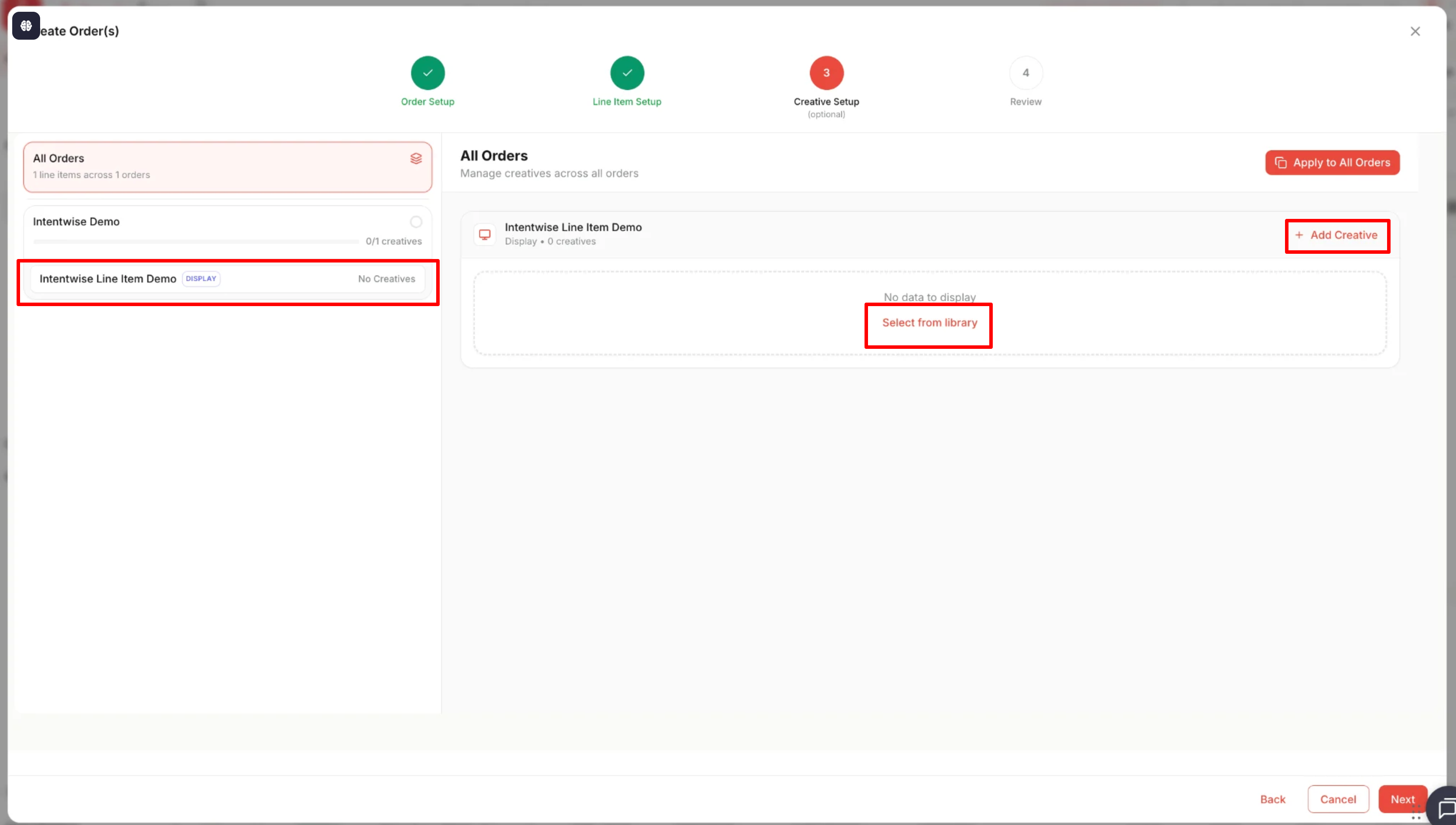
Step 4 - Review
Review Your Order(s) shows a summary of everything before submission:
Order-level: Media Type, Goal, Flights, Order Flight Budget
Line item-level: Audience, Delivery (pacing, start/end dates), Creatives
Use Edit Order or Edit Line Items to jump back and make changes. When everything looks right, select Finish to submit.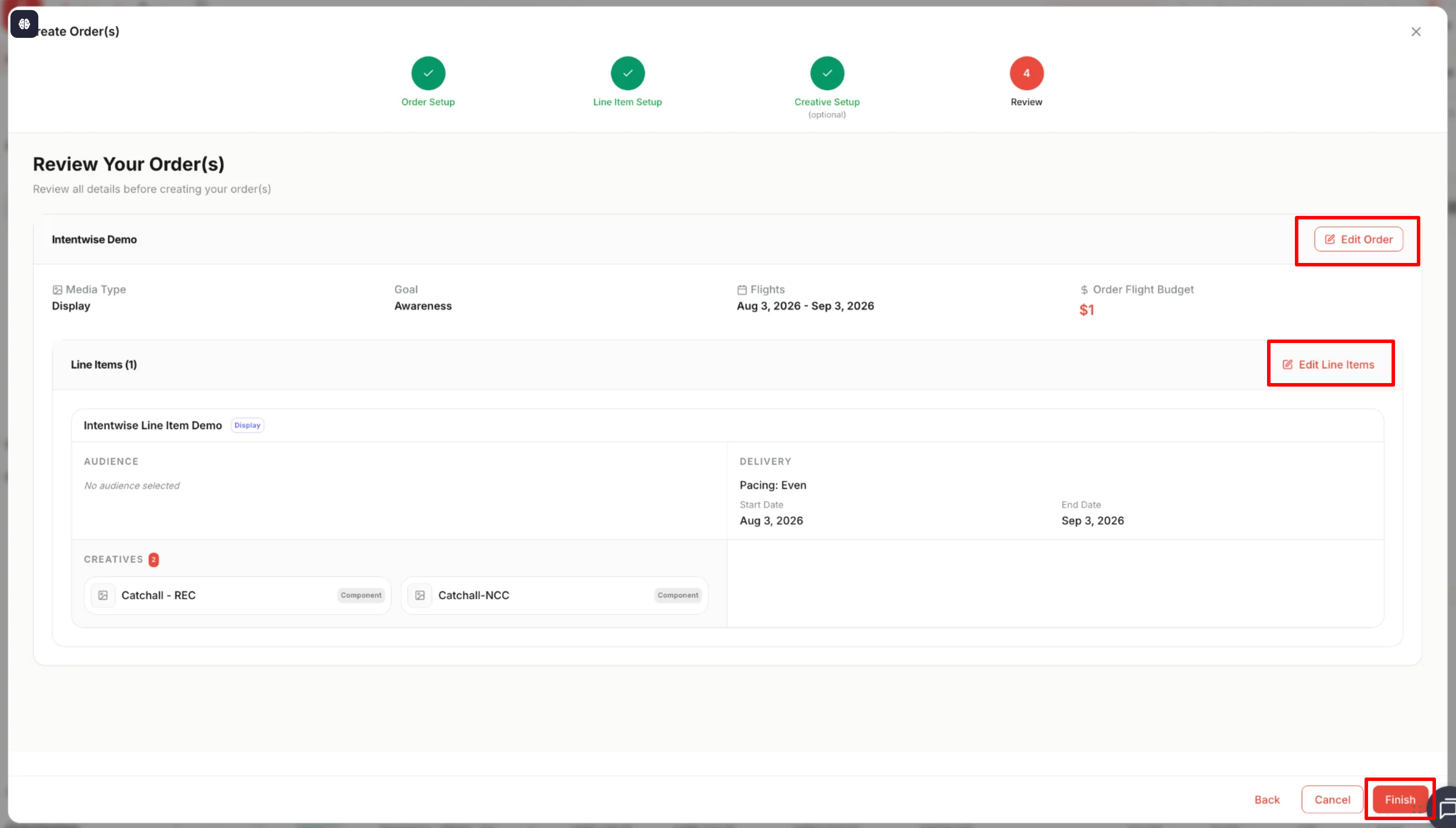 After You Submit
Order creation runs in the background. You'll get a notification in the bell icon (top navigation) in about 15 minutes with the status of your order creation.
Frequently Asked Questions (FAQs)
-
How many orders can I create at once?
Up to 5 orders in a single flow.
-
How many line items can each order have?
Up to 5 line items per order.
-
How many creatives can a line item have?
Each line item can have multiple creatives attached.
-
Is the Creative Setup step required?
No. Creative Setup is optional - you can add creatives during setup or later.
-
Can I add creatives to all orders at once?
Yes. In Creative Setup, select All Orders → Apply to All Orders to assign creatives across every line item.
-
How do I know if my order was created?
You'll receive a notification in the bell icon in roughly 15 minutes showing the status.
-
Is Order Creation available on the old UI?
No. It's available only on the new UI.
-
Can I create tactic-based orders?
Not at this time. Tactic-based order creation is not currently supported.