![footer-logo.png]](https://help.intentwise.com/hs-fs/hubfs/footer-logo.png?width=210&height=40&name=footer-logo.png)
Connect your Google Ads accounts to Intentwise Analytics Cloud to access ad performance and insights. 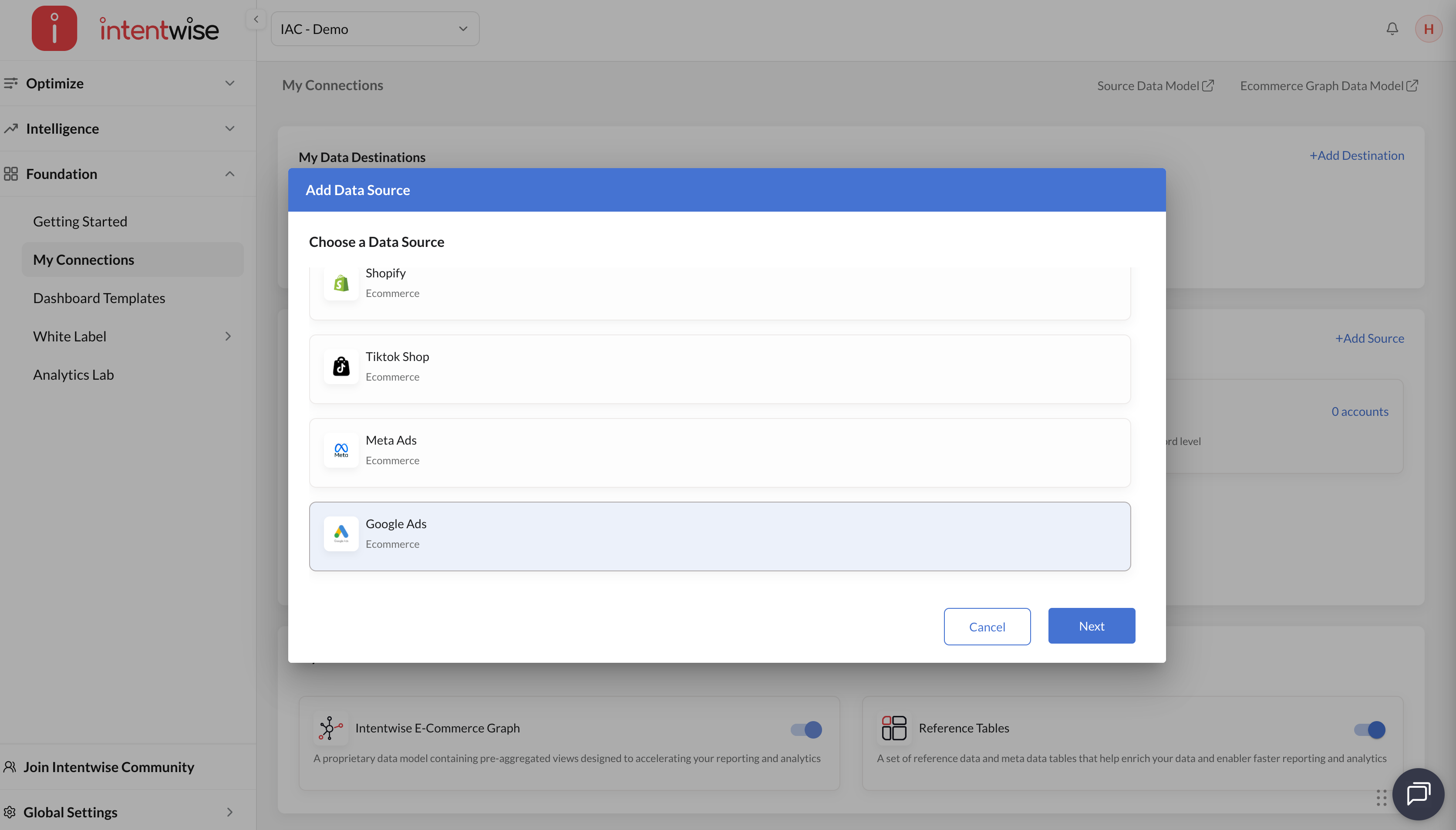
How to connect Google Ads Account(s) in Intentwise
You can connect your Google Ads account(s) by following these steps:
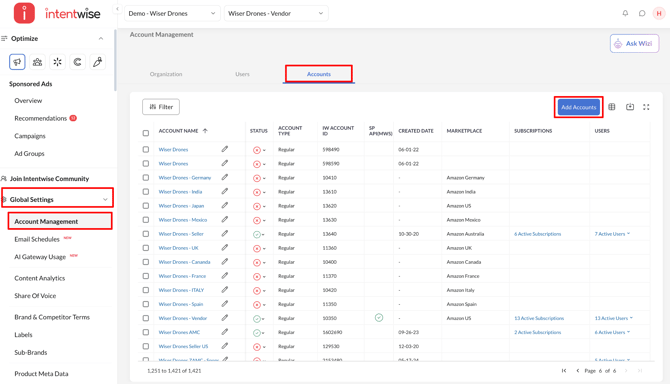
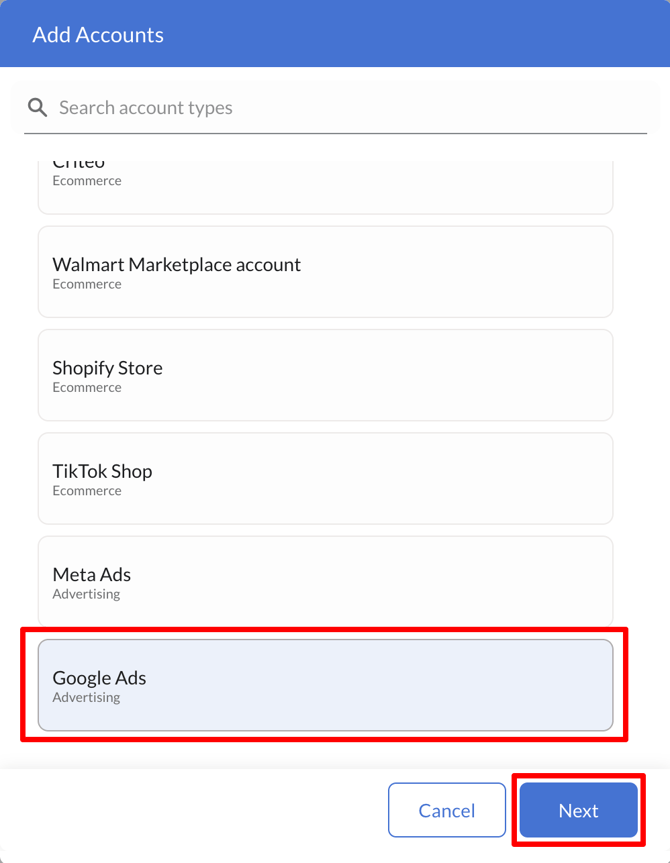
- Click Account Management in the bottom-left corner under Global Settings. Then go to Accounts → Add Accounts → Google Ads and click Next.
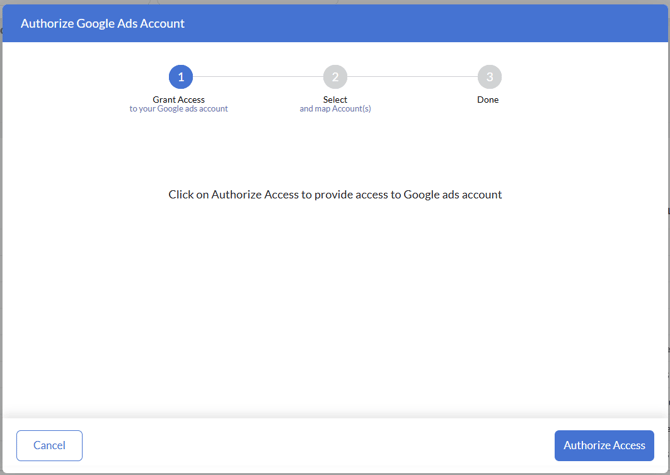
- Click Authorize Access, then sign in with the Google account credentials that have access to the Google Ads account(s), grant the requested permissions, and you will be redirected back to the Intentwise account connection flow to complete the setup.
- After authorization, Intentwise will display the Google Ads accounts returned by Google. Select the accounts you want to connect, map each one to an existing Intentwise account or create a new one if needed, and then click Submit to complete the setup.
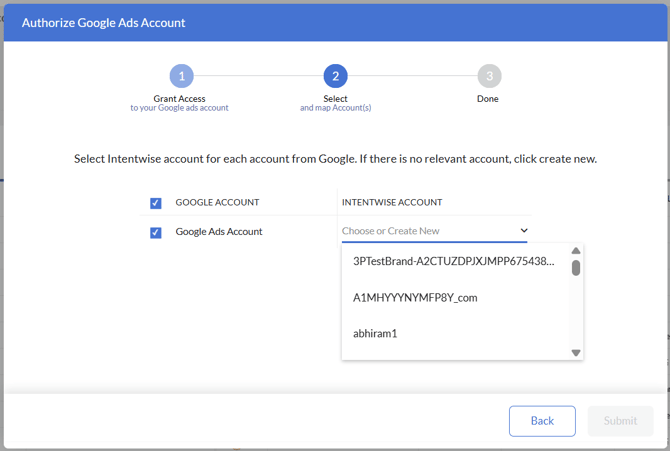
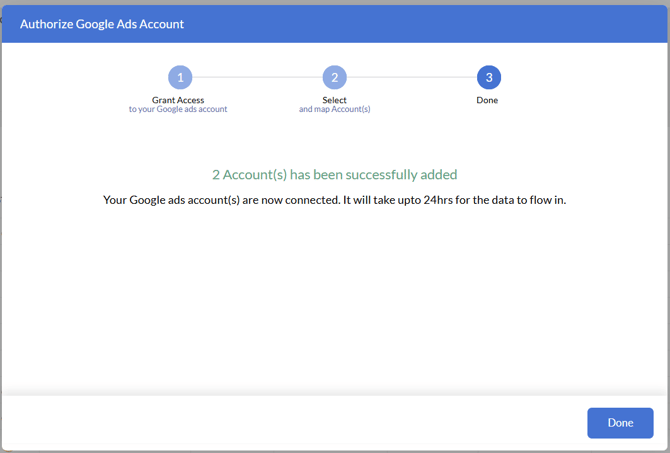
By default, all Google Ads accounts are selected. You can use the search option to find an existing Intentwise account to map each Google Ads account. Each Intentwise account can only be mapped once, and the Submit button will be enabled only after every selected Google Ads account has been mapped to an existing Intentwise account or a new account has been created. - After submitting the mapping, a success message will be displayed confirming that the selected Google Ads account(s) have been added successfully. Data will begin flowing into Intentwise within 24 hours.
Note: Please ensure that you have admin access to the subaccounts under the MCC(My Client Center in Google Ads)
Also, while authorizing, please make sure that the Ads permission checkbox is selected on the consent screen (if it appears).
Note: If the Google Ads account is already connected to an Intentwise account, Intentwise skips the mapping step and takes you directly to the success screen.
How to enable Google Ads account as a data source on Intentwise
To enable the Google Ads account(s) as a data source within Intentwise, follow these steps:
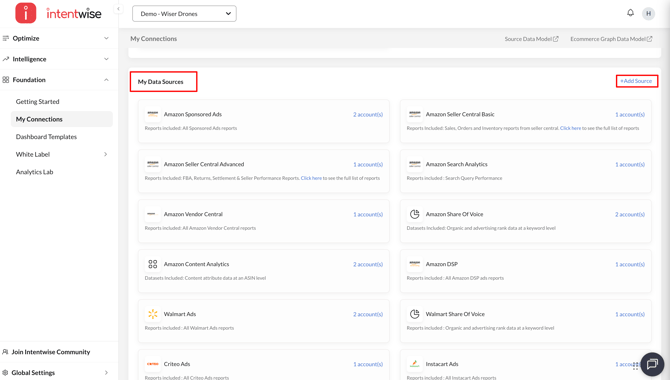
- Navigate to Foundation → My Connections in the left navigation menu and
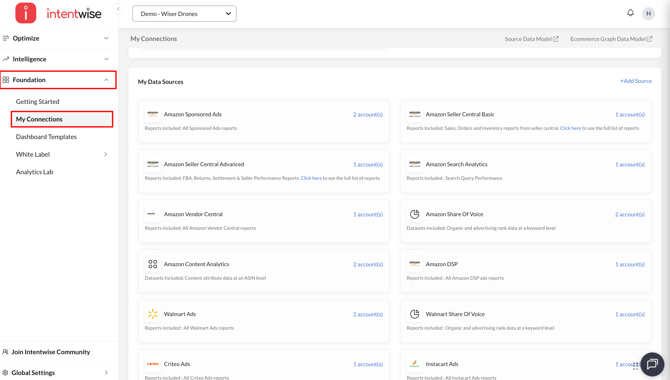
- Navigate to My Data Sources and click on +Add Source
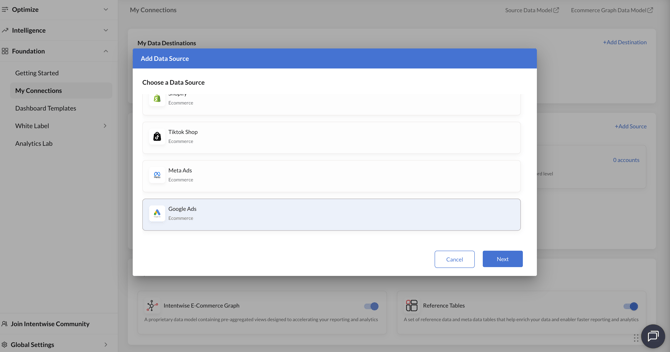
- Select Google Ads and click Next
- Select the account to be enabled as a data source and click Enable.
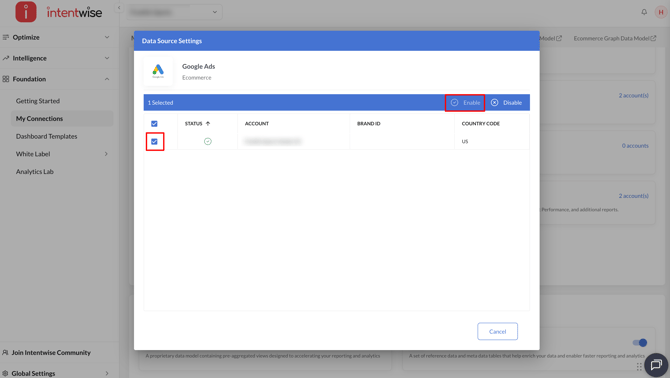
Note: Once the account is enabled as a data source, it will take 24 hours for Intentwise to start capturing the data
How to access Google Ads data on Intentwise
To view your Google Ads data within Intentwise, follow these steps:
- Navigate to Intelligence → Commerce Insights → Retail Insights from the left navigation menu.
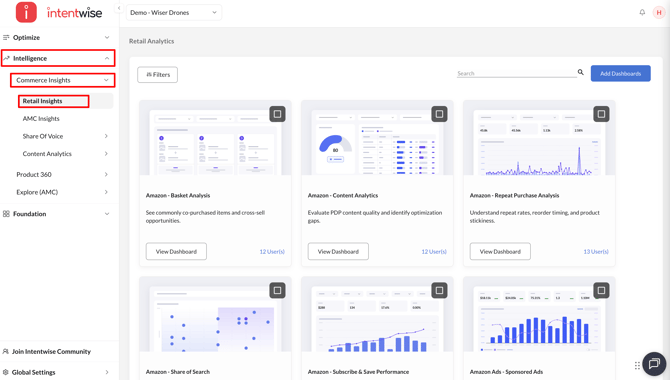
- Click on the Add Dashboards button
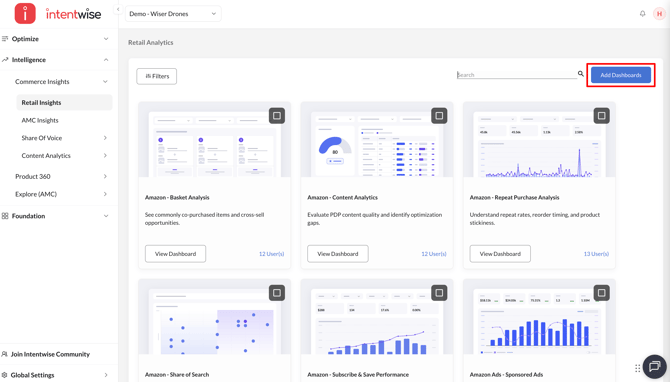
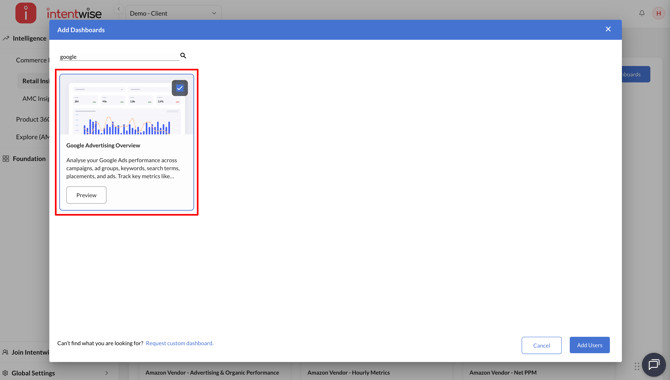
- Enable the Google Advertising Overview dashboard
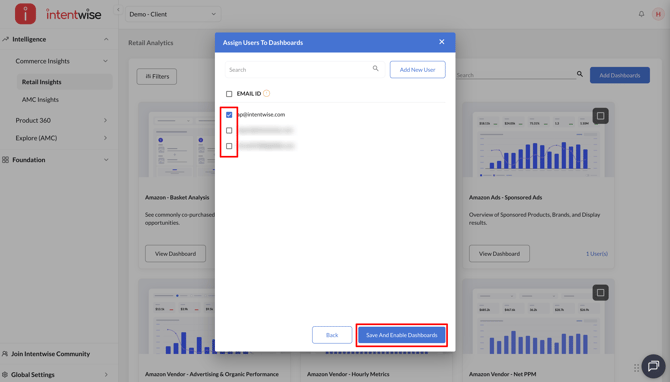
- Assign users and click Save And Enable Dashboards
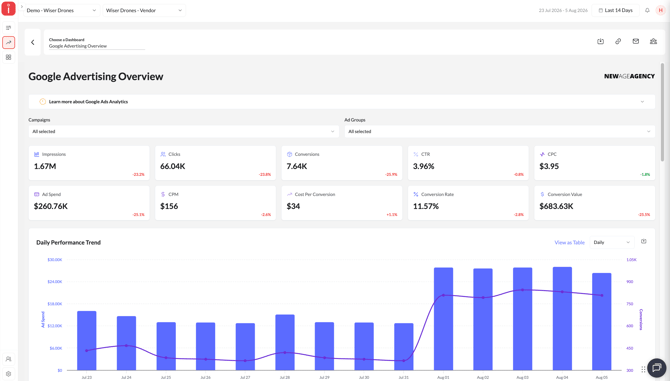
- Go to the Google Advertising Overview dashboard and click on View dashboard
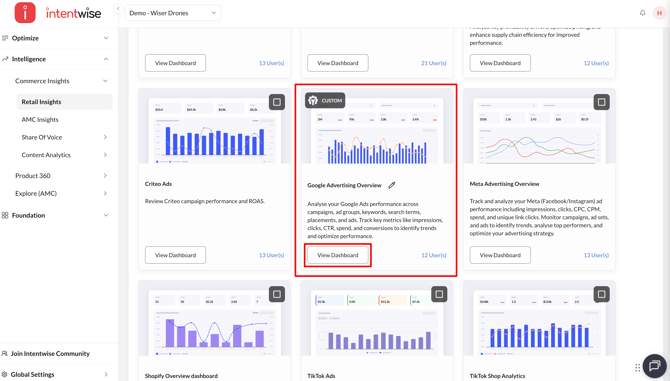
- Access the dashboard