![footer-logo.png]](https://help.intentwise.com/hs-fs/hubfs/footer-logo.png?width=210&height=40&name=footer-logo.png)
Overview
When a data source is connected in Looker Studio (formerly Google Data Studio), the report owner can choose how Looker Studio authenticates to the underlying dataset. This setting is called Data credentials and offers two main options: Owner's Credentials and Viewer's Credentials.
This setting directly controls which accounts a recipient sees when the dashboard is shared, and whether they need to sign in to the Intentwise platform to view the data. This article explains both options, shows how the dashboard appears to different users under each setting, and walks through how to switch between them.
How to Access the Data Credentials Setting
Follow these steps inside your Looker Studio report:
-
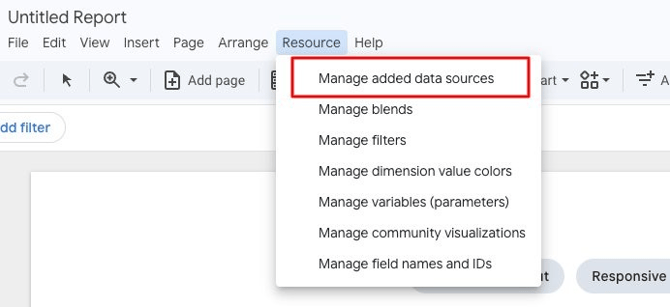
Go to Resource → click Manage added data sources.
-
Locate the data source you want to update and click EDIT.

-
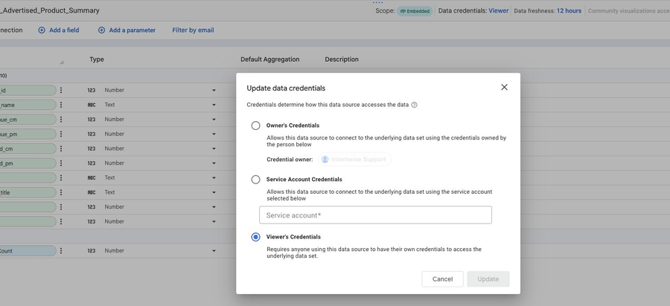
In the top bar, click the Data credentials value (it shows the current credential owner, e.g. "Intentwise Support").

-
In the Update data credentials dialog, select either Owner's Credentials or Viewer's Credentials, then click Update.
Owner's Credentials
When the data source is set to Owner's Credentials, Looker Studio fetches data using the credentials of the person who owns the data source. Anyone the dashboard is shared with sees the same data the owner sees — regardless of what those viewers can access in the Intentwise platform.
How It Works
- The dashboard owner authenticates once to the Intentwise data source.
- Looker Studio stores that authentication and uses it for every viewer.
- If the owner has access to all accounts on Intentwise, every viewer of the dashboard will see all of those accounts.
- Viewers do not need an Intentwise login — they only need access to the Looker Studio report itself.
What Users See — Owner's Credentials
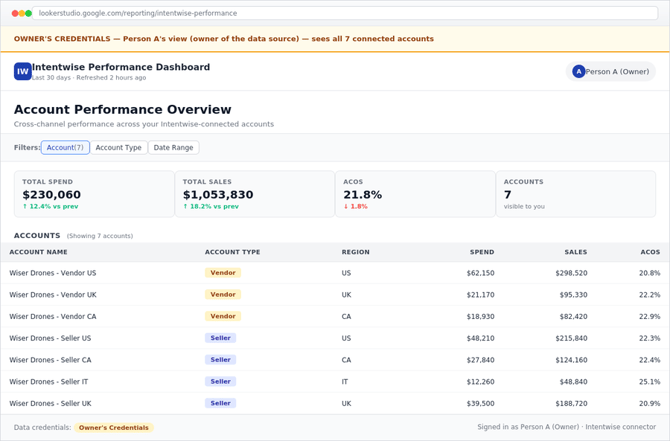
In this scenario, Person A (the dashboard owner) has access to all 7 accounts in the Intentwise platform. The data source is set to Owner's Credentials and the dashboard is shared with User X and User Y.
Person A (Owner) opens the dashboard
User X (or User Y) opens the same dashboard

|
Key Takeaway: Every viewer of the dashboard sees the full dataset that Person A has access to, regardless of what they would see if they logged in to Intentwise themselves. |
Pros
- Easiest setup — viewers don't need to do anything.
- Useful for sharing with stakeholders who do not have an Intentwise login.
- Consistent view across all viewers.
Cons
- Data security risk — All viewers see the full dataset the owner has access to, even accounts they would not normally be permitted to see in Intentwise.
- Not suitable for client-facing dashboards where each client should see only their own data.
- Access cannot be scoped per viewer.
Viewer's Credentials
When the data source is set to Viewer's Credentials, Looker Studio asks each viewer to authenticate with their own Intentwise account. The data shown in the dashboard is scoped to whatever that specific viewer has access to in the Intentwise platform.
How It Works
- When a viewer first opens the dashboard, Looker Studio prompts them to authorise the Intentwise connector with their own credentials.
- This authorisation is a one-time setup per viewer per connector.
- Looker Studio then fetches data on behalf of that viewer — returning only the accounts they are permitted to see.
- Different viewers looking at the same dashboard will see different data.
What Users See — Viewer's Credentials
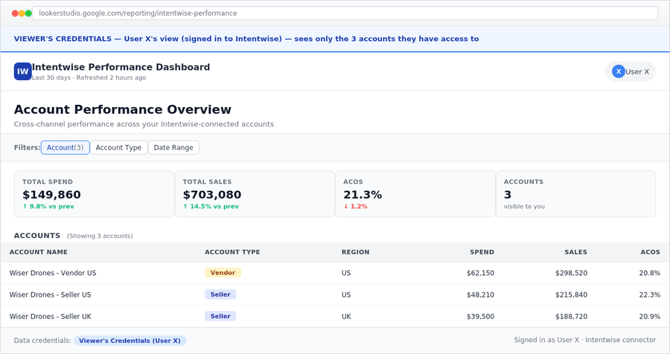
Using the same dashboard as before — but with the data source now set to Viewer's Credentials. User X has access to 3 accounts in Intentwise; User Y has access to 5.
User X opens the dashboard
User Y opens the same dashboard

|
Key Takeaway: Each viewer sees a personalised slice of the same dashboard, scoped automatically by their Intentwise permissions. Grant or revoke access in Intentwise and the dashboard updates accordingly. |
Pros
- Strong data security — Access is enforced per viewer based on Intentwise permissions.
- Ideal for client-facing dashboards and multi-tenant scenarios.
- Centralised access control — changes made in Intentwise (granting or revoking account access) take effect automatically in the dashboard.
Cons
- Every viewer must be onboarded to the Intentwise platform — Without an Intentwise account, they cannot view the dashboard.
- Each viewer must complete a one-time connector setup the first time they open the dashboard in Looker Studio.
- Slightly higher friction when sharing with new users.
Side-by-Side Comparison
|
Aspect |
Owner's Credentials |
Viewer's Credentials |
|---|---|---|
|
Who data is fetched as |
The dashboard owner |
Each viewer (using their own Intentwise login) |
|
What viewers see |
Everything the owner can access (all accounts on owner's Intentwise login) |
Only the accounts they personally have access to in Intentwise |
|
Intentwise login required for viewers? |
No |
Yes — each viewer needs an Intentwise account |
|
One-time setup for viewers? |
Not required |
Required — each viewer authorises the connector once |
|
Data security |
Lower — all viewers see the full dataset |
Higher — access is scoped per user |
|
Best suited for |
Internal teams or stakeholders who all need the same full view |
Client-facing dashboards, multi-tenant sharing, role-based access |
Recommendations
- Use Owner's Credentials when the dashboard is for internal stakeholders who all need the same complete view, and where the data does not require per-user restriction.
- Use Viewer's Credentials when sharing dashboards with clients, external partners, or any audience where each viewer should only see their own accounts. This is the recommended option for production, client-facing dashboards.
- Always review the Data credentials setting before sharing a dashboard externally. The default is often Owner's Credentials and may expose more data than intended.