![footer-logo.png]](https://help.intentwise.com/hs-fs/hubfs/footer-logo.png?width=210&height=40&name=footer-logo.png)
Labels in Intentwise are custom tags that group your advertising entities, such as campaigns, keywords, products and DSP orders, for example by brand, product line or client. Once entities share a label, you can filter, report on and manage them as one group.
In this article, you will learn about:
-
Ways to setup labels
-
How to set up static labels
-
How to set up dynamic labels
-
How to use account labels
Ways to setup Labels
Static labels are tags that you apply yourself to campaigns, keywords, targets, products or DSP orders in the platform. The label stays on exactly the entities you choose until you change it.
Dynamic labels are tags that Intentwise applies automatically, based on conditions you set. Every campaign, keyword, target, product or DSP order that meets those conditions gets the label, including new ones added later.
Steps to Create and Use Labels Manually
Step 1: In the left navigation menu, under Global Settings, click "Labels." Click on "Add Label," enter the name of the Label, and submit.
Step 2: Now, select a set of Targets, Products, Ad groups, or Campaigns that you want to group under this Label. Select "Label" on the top-right, choose the Label where you want to group these, and click "Add".
Alternatively, you can also create a new Label here. Type the name and click on "Add New".
Step 3: Your newly created Label will be available as a filter, column, roll up and criteria in automated rules. 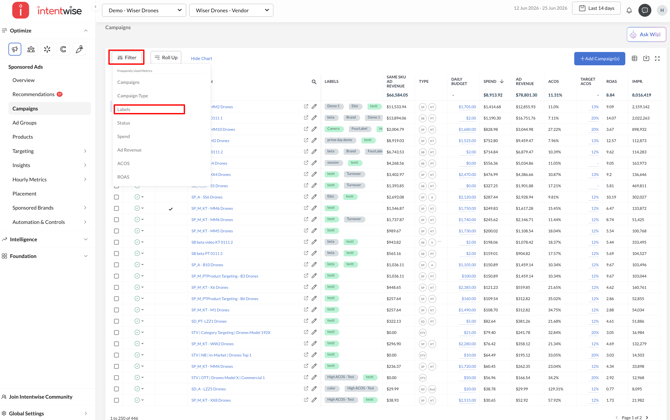
Steps to Create and Use Dynamic Labels
-
Add Dynamic Labels to existing labels: Dynamic Labels are available within Labels under Global Settings. Click the pencil icon to add criteria. If you don't have any existing labels, add a label first.
-
Define Criteria: Define the criteria for label assignment based on your specific requirements. For example, you can set rules based on campaign types, keywords, ASINs, or other parameters.

-
Apply Labels: Once you've defined your criteria, the labels will automatically apply to the corresponding items in your campaigns, keywords, products, or DSP orders.
-
Update Automatically: Dynamic labels update automatically on a daily basis at 4 AM PST, reflecting any changes in your data or criteria.

Different Types of Dynamic Labels
There are several types of dynamic labels you can create:
-
Campaign Labels: Based on campaign type, name, or status. [You can choose the 'Cascade' option to apply labels to not only the campaigns but also all the underlying products and targets.]
 Note: Even with the cascade enabled, you can set criteria at the individual entity level. This means that criteria at both the campaign level and the individual level will be considered when assigning the dynamic label.
-
Keyword Labels: Based on campaign, campaign type, keywords, brand type, or match type.

-
Products (ASIN) Labels: Based on campaign, campaign type, or ASINs.

-
Product Targets Labels: Based on campaign name, campaign type, ASIN targets, or brand type.

-
DSP Order Labels: Based on order names.

Please Note:
-
Labels are associated with individual entities - Accounts, Keywords, Product Targets, Products, and Campaigns, meaning you will only see labels associated with campaigns in the campaigns dashboard and not those linked with related Keywords, Targets, and Products.
Account-level Labels
You can also create labels for your accounts under the All Accounts tab to manage your organization-level accounts effectively.

Watch this video for detailed steps:
Frequently Asked Questions (FAQs)
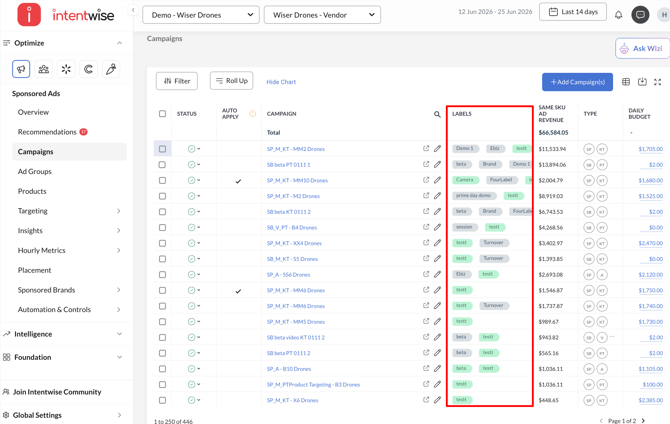
1. Why are some labels in different colors?
The color-coding of labels helps differentiate between types of labels for easier management and clarity:
-
Gray Labels: These represent conventional/manual labels. They are labels that you have created or customized manually to categorize and manage your data based on your specific needs.
-
Green Labels: These indicate dynamic labels. These labels are automatically generated based on predefined criteria, streamlining the process of organizing and managing your data without manual intervention.
2. How to edit an existing label name?
To edit a label name, go to Global Settings > Labels and click the pencil icon to edit the label settings.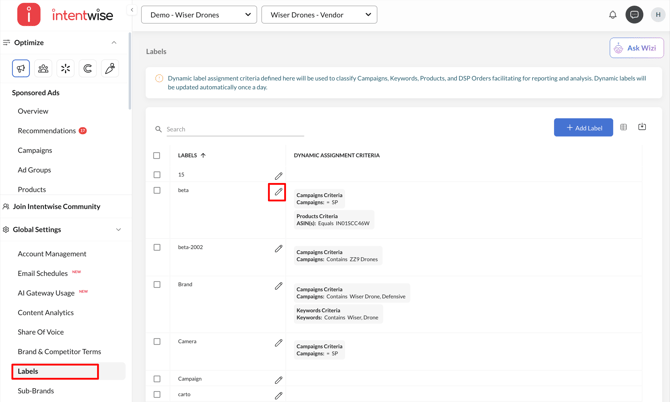
Enter the desired name and click save.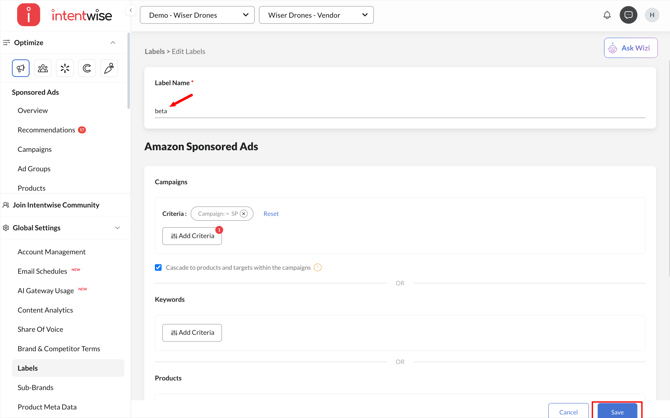
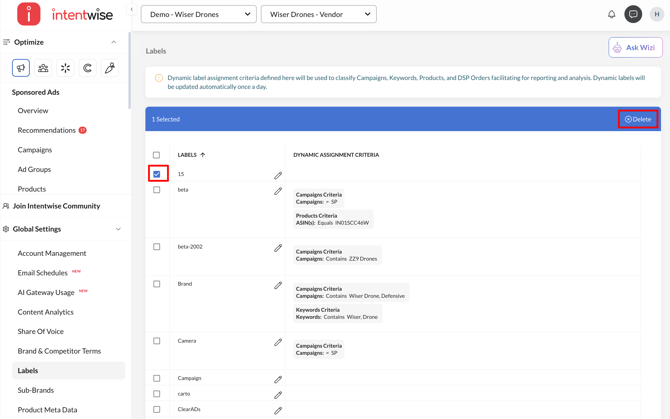
3. How to delete a label?
Select the checkbox next to the label name, then click Delete from the banner in the top-right.