![footer-logo.png]](https://help.intentwise.com/hs-fs/hubfs/footer-logo.png?width=210&height=40&name=footer-logo.png)
In this article, you will learn how to provide API access to the Seller Central SP API (sometimes spelled as spapi), which allows you to gain access to target ACOS, total units, total revenue, and inventory metrics in the Intentwise Ad Optimizer platform.
Steps to provide access to Amazon Seller Central accounts:
-
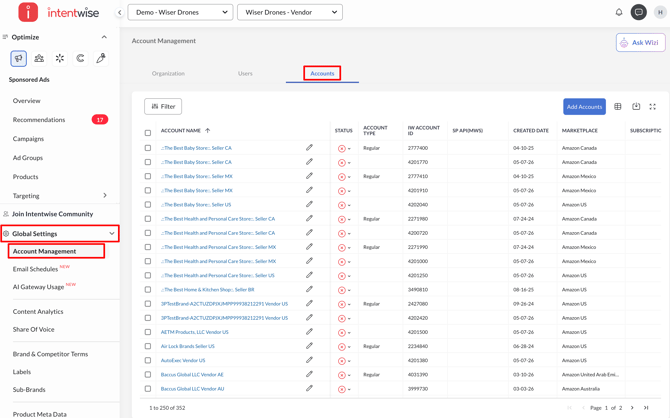
Go to Global Settings in the bottom left corner and click on Account Management.
-
Follow these steps: Account Management > Accounts tab > Add Accounts > Amazon Seller Central > Next
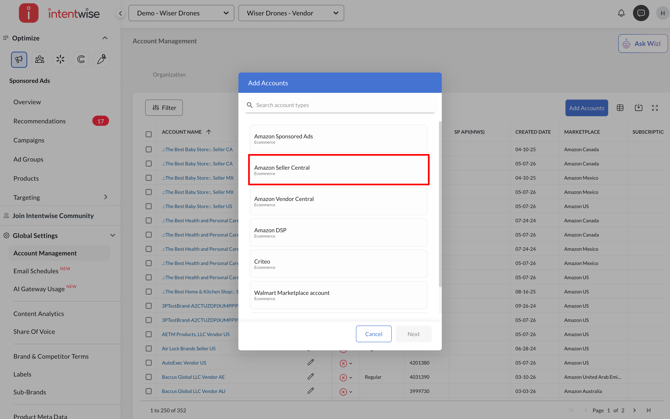
Note: It is recommended to add the Seller Ads account first, as doing so will automatically associate the Seller Central SP API access with the ads accounts.
-
Select one of the options:
-
If you are the account owner, authorize the access. (You can also pick this option if you have full access to the account)
-
If you are an agency, copy the authorization link and share it with the account
owner to authorize.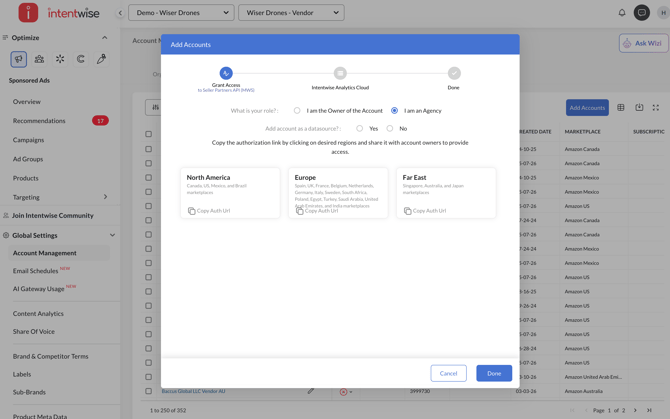
-
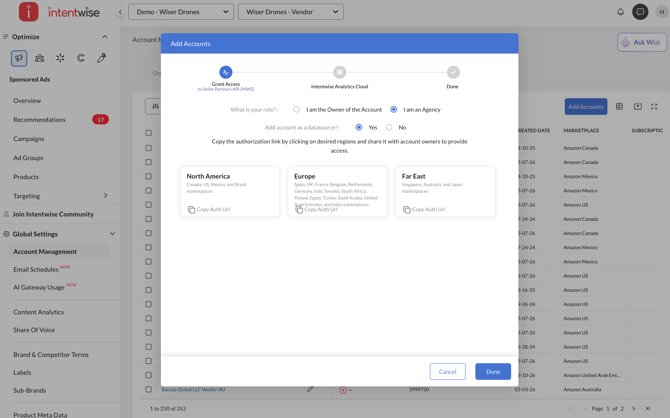
Optional: Select Yes if you want to add the account as a data source to the Intentwise Analytics Cloud. You can manage the data source connections from the Intentwise Analytics Cloud > My Connections at any time.
-
-
You/they need to log in to the Amazon Seller account and in the following screen that appears, provide us the consent.
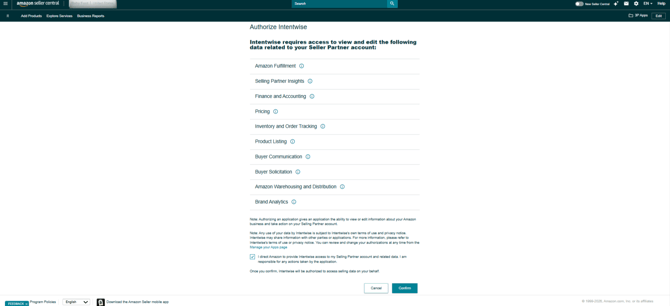
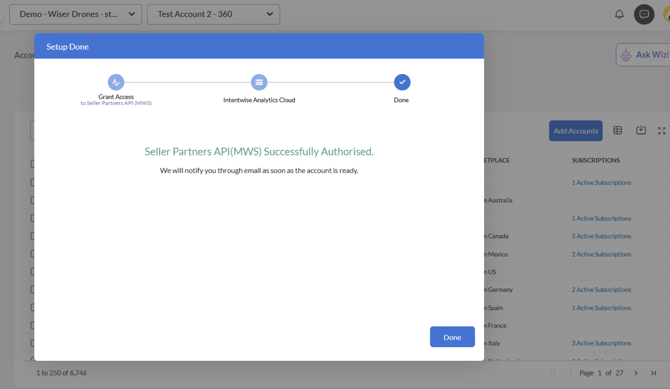
On successful completion, a success message will appear. The setup of the SP-API takes around 24 hours. We'll notify you via email once it is complete.
Watch the video
If you want to enable a Seller Central account in Intentwise Analytics Cloud, you need to follow a set of additional steps. Find these steps here.
If you are looking to connect a Vendor Central account, you can find those steps here.
Frequently Asked Questions
How to reauthorize access?
If your account access has expired, you would need to reauthorize access. Select reauthorize on the right-hand side:

How do I enable and access Amazon AWD Inventory data?
To access Amazon Warehousing & Distribution (AWD) Inventory data in Intentwise, you need to ensure that the appropriate AWD permissions are enabled for the Amazon Seller Central user being used for authorization. You’ll then need to reauthorize the SP-API connection and enable the AWD Inventory reports in Intentwise.
Step 1: Enable AWD permissions in Amazon Seller Central
- Log in to Amazon Seller Central using the primary/admin account.
- Navigate to User Permissions.
- Ensure that the user who will authorize Intentwise has the required Amazon Warehousing & Distribution (AWD) permissions enabled.
- Once the permissions have been enabled, proceed with SP-API reauthorization for the account so that the AWD permissions are included in the authorization.
Step 2: Ensure the account is connected as an Amazon Seller Central Advanced data source
In Intentwise, navigate to:
Foundation → My Connections → My Data Sources
Under Amazon Seller Central Advanced, ensure that the required accounts are enabled as a data source.
Step 3: Enable AWD Inventory reports
Once the account has been successfully authorized, navigate to Report Settings under the Amazon Seller Central Advanced data source and enable the required AWD Inventory reports.
Once the required permissions, authorization, data source, and reports are enabled, AWD Inventory data will be available in the corresponding Intentwise source data table.